# Web Form Integration

{% code overflow="wrap" %}

```html
<div data-filemail-widget="form" data-companyid="{AccountID}" data-target="#transfer-url"></div><script type="text/javascript" src="https://www.filemail.com/widgets/embed/form"></script>
```

{% endcode %}

While this integration can be used in many different scenarios, we will use the popular Wordpress plugin Contracts Form 7 in the following example.

## Contact Form 7 + Filemail

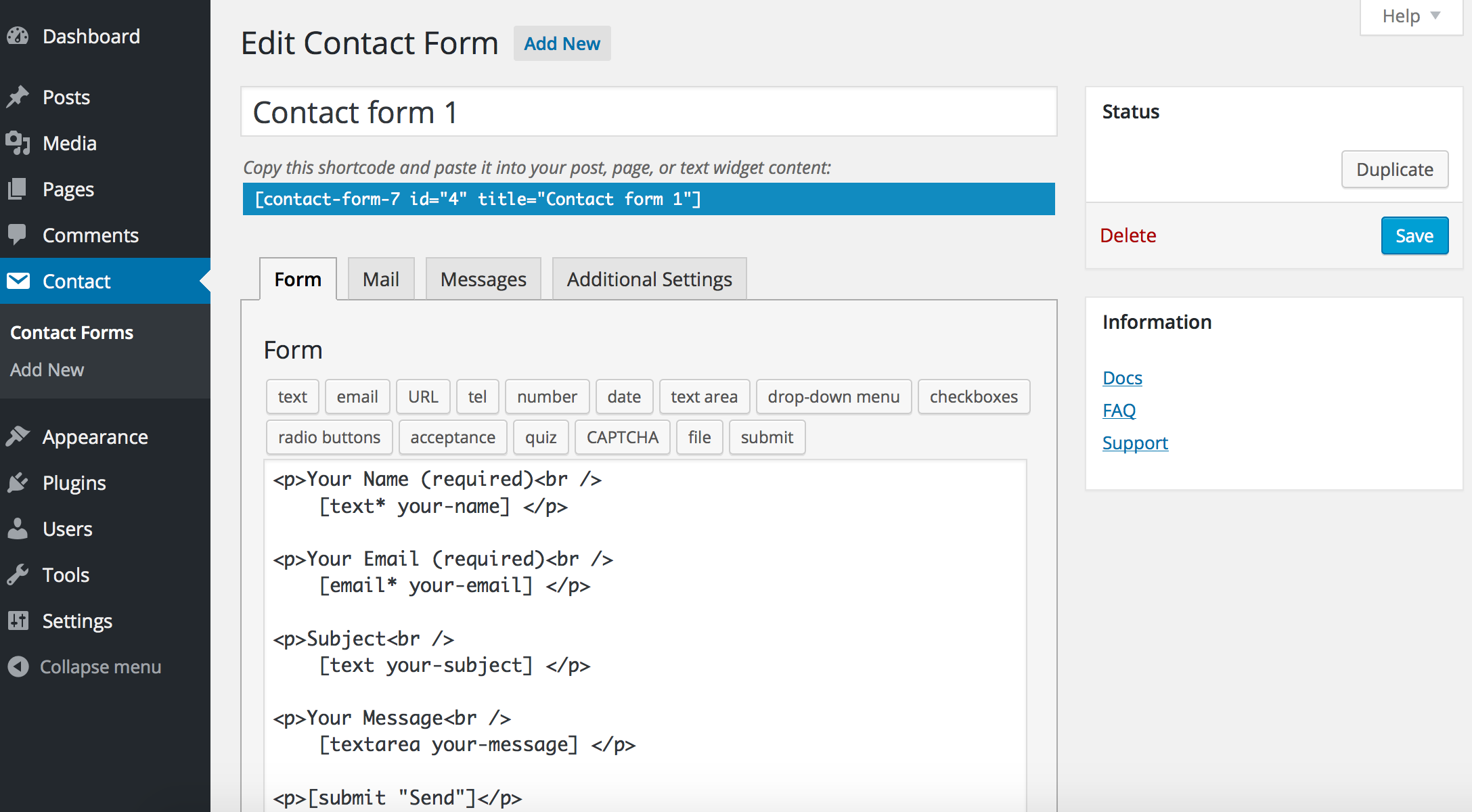
You start by creating a new custom Contact form and set it up with all the fields you need.

<figure><img src="/files/6KbxiLqyZ9Pv268NEDTi" alt=""><figcaption></figcaption></figure>

At the place in the form where you want your file upload to be, you will add a small code snippet like this:

{% code overflow="wrap" %}

```html
<div data-filemail-widget="form" data-companyid="{AccountID}" data-target="#transfer-url"></div>

[hidden transfer-url id:transfer-url]

<script type="text/javascript" src="https://www.filemail.com/widgets/embed/form"></script>
```

{% endcode %}

### Required attributes <a href="#h_f760b7adf3" id="h_f760b7adf3"></a>

<table data-header-hidden><thead><tr><th width="250.01171875">Data field</th><th>Description</th></tr></thead><tbody><tr><td>Name</td><td>Example value</td></tr><tr><td><pre><code>data-filemail-widget
</code></pre></td><td><em>Required with value "form"</em></td></tr><tr><td><pre><code>data-companyid
</code></pre></td><td>Your companies account id. Found in <a href="https://app.filemail.com/settings/company">Settings - My Company</a> and on top you will see "Account ID".</td></tr><tr><td><pre><code>data-target
</code></pre></td><td><em>This is the selector of an HTML input element (which is part of your custom form) where you want us to insert the link to uploaded files. It's most convenient to use the input's id attribute - in that case the selector is prefixed with # sign</em></td></tr></tbody></table>

### Optional attributes: <a href="#h_62396bb796" id="h_62396bb796"></a>

<table data-header-hidden><thead><tr><th width="251.93359375"></th><th></th></tr></thead><tbody><tr><td>Name</td><td>Example value</td></tr><tr><td><pre><code>data-incoming-page-name
</code></pre></td><td>Portal page ID. Found in <a href="https://app.filemail.com/portals">Portal Administration - Edit Portal</a> - Leave empty to use default.</td></tr><tr><td><pre><code>data-height
</code></pre></td><td><em>Specify the height of this component in pixels</em></td></tr><tr><td><pre><code>data-color
</code></pre></td><td><em>Set a custom color on the component</em></td></tr><tr><td><pre><code>data-to
</code></pre></td><td><em>Specify the to e-mail address if you don't want it to be the account default e-mail. It will appear in the Filemail inbox of this user(s) (multiple recipients are separated with comma).</em></td></tr></tbody></table>

After the user has selected files using the embedded file browser from Filemail, the files are being transferred and when finished, the URL will have been inserted into your hidden field in the contact form. Now user can post the form with the link to files included. That link can be then injected it into the Contact Form 7 email (the one which you receive when people submit the form) like this:

![](/files/UZGT1BsgdAEndKsxUmWZ)<br>


---

# Agent Instructions: Querying This Documentation

If you need additional information that is not directly available in this page, you can query the documentation dynamically by asking a question.

Perform an HTTP GET request on the current page URL with the `ask` query parameter:

```
GET https://docs.filemail.com/integrations/web-form-integration.md?ask=<question>
```

The question should be specific, self-contained, and written in natural language.
The response will contain a direct answer to the question and relevant excerpts and sources from the documentation.

Use this mechanism when the answer is not explicitly present in the current page, you need clarification or additional context, or you want to retrieve related documentation sections.
